GR-4 Firmware Update (Step-by-Step)
DownloadWhat’s Included in This Update
This firmware update includes important performance improvements and optimizations for the GR- 4 device.
- Improved operation in sub-zero temperatures
An issue causing unstable behavior when operating below 0°C has been fixed.
- Enhanced 3D MFS visualization
Improvements have been made to the 3D MFS visualization for more accurate and stable visual results.
- Optimized PI detection percentage values
PI detection percentage calculations have been adjusted for more consistent and reliable readings.
Connect the device
First, connect your GR-4 to your computer using a USB Type-C cable.
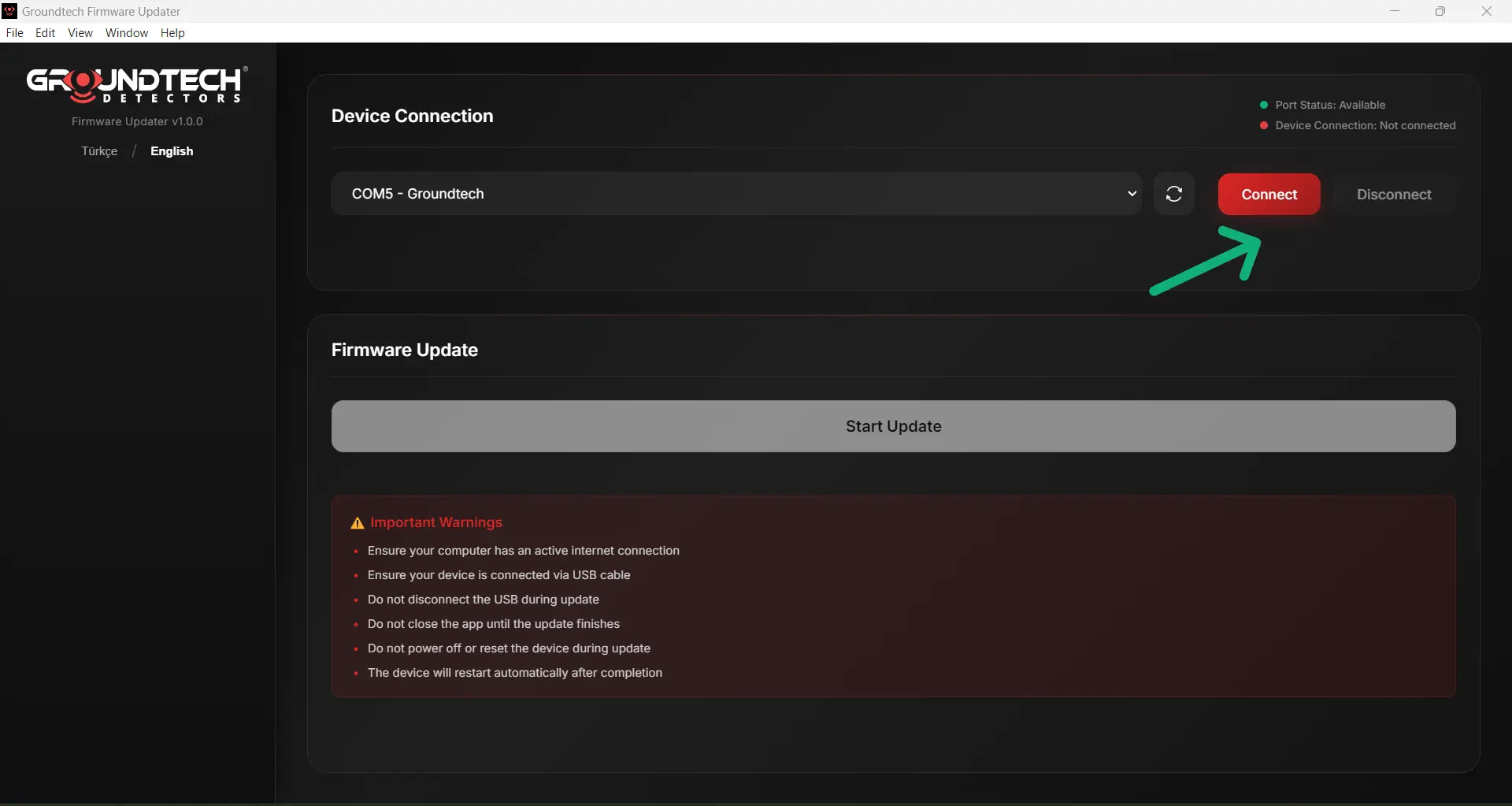
Connect in the updater
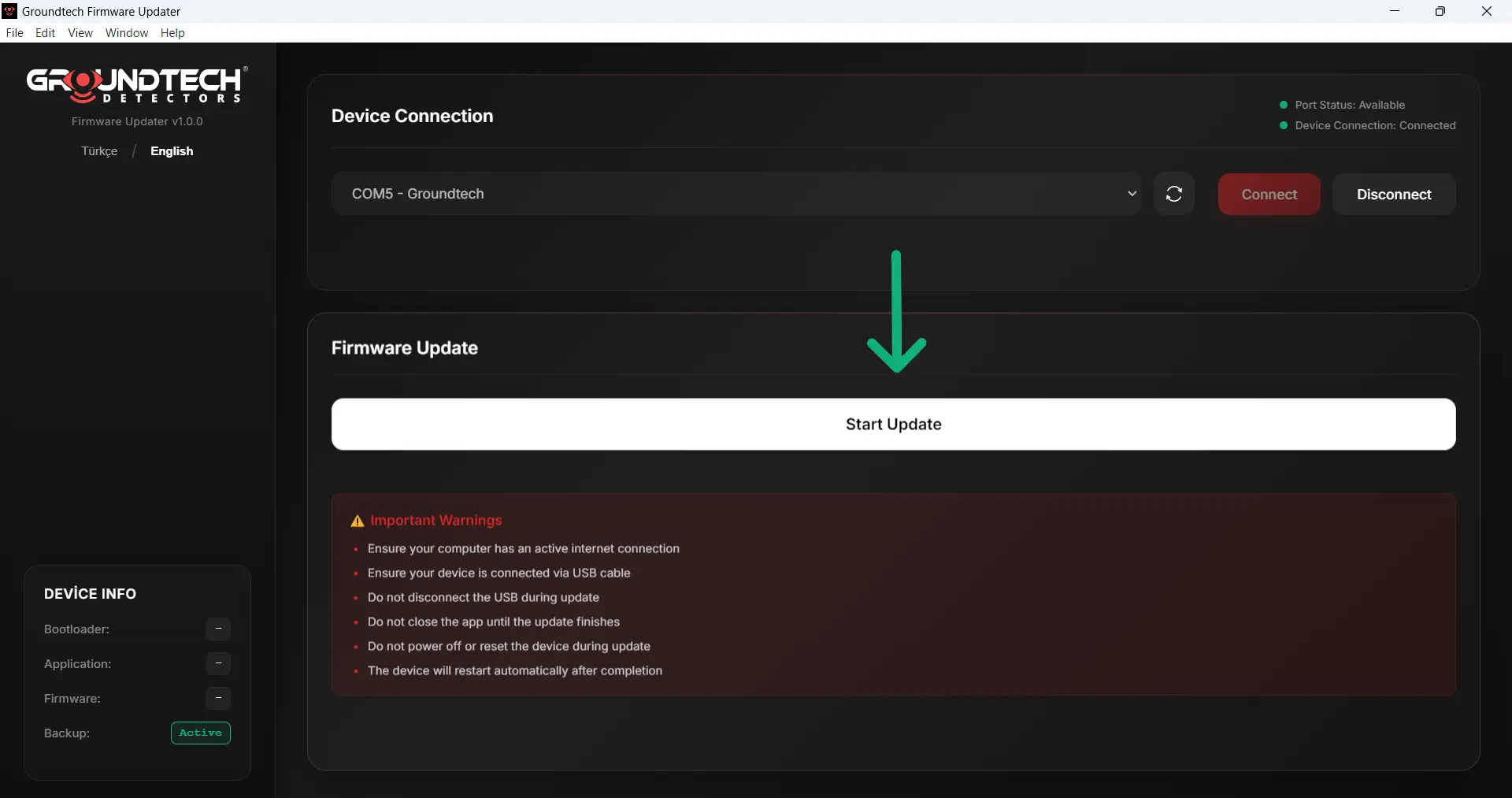
Start the update
Click Start Update to begin the firmware update process.
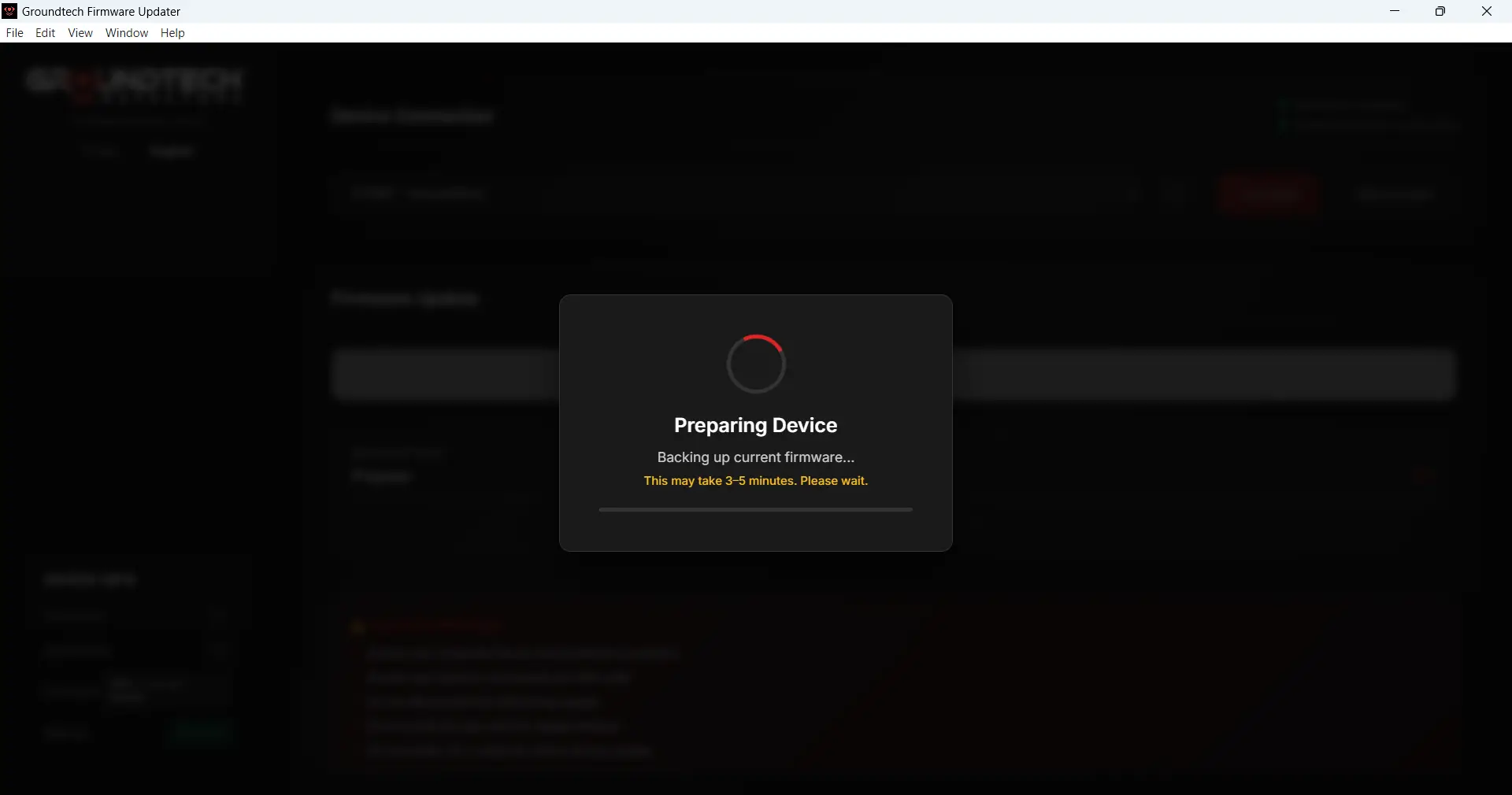
Preparing device (download + backup)
The updater will download the latest firmware and create a backup of your current firmware. This step may take up to 3–5 minutes.
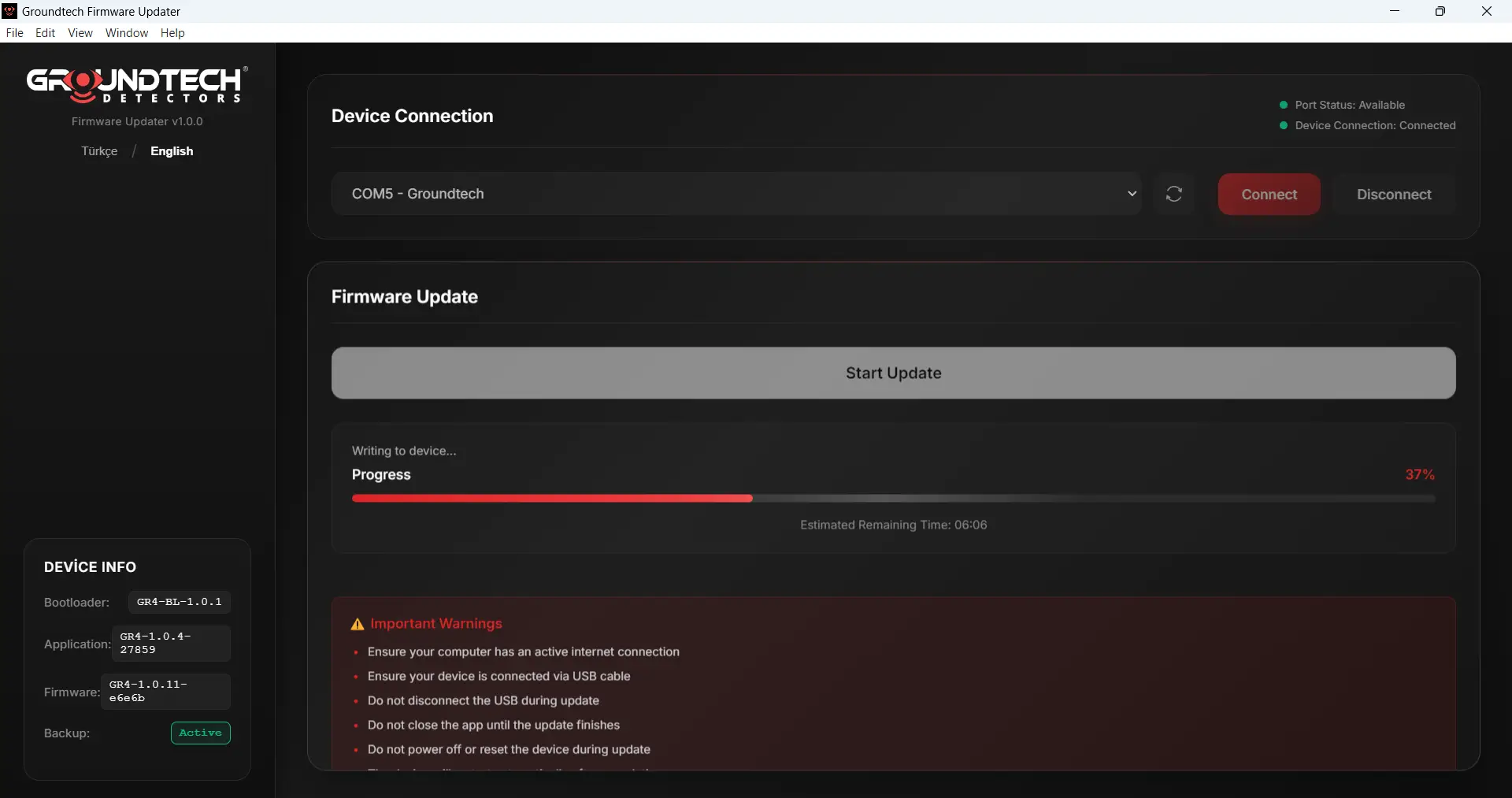
Updating firmware (do not disconnect)
Firmware installation has started. This process may take 5–10 minutes. Do not disconnect the USB cable and do not close the app during the update.
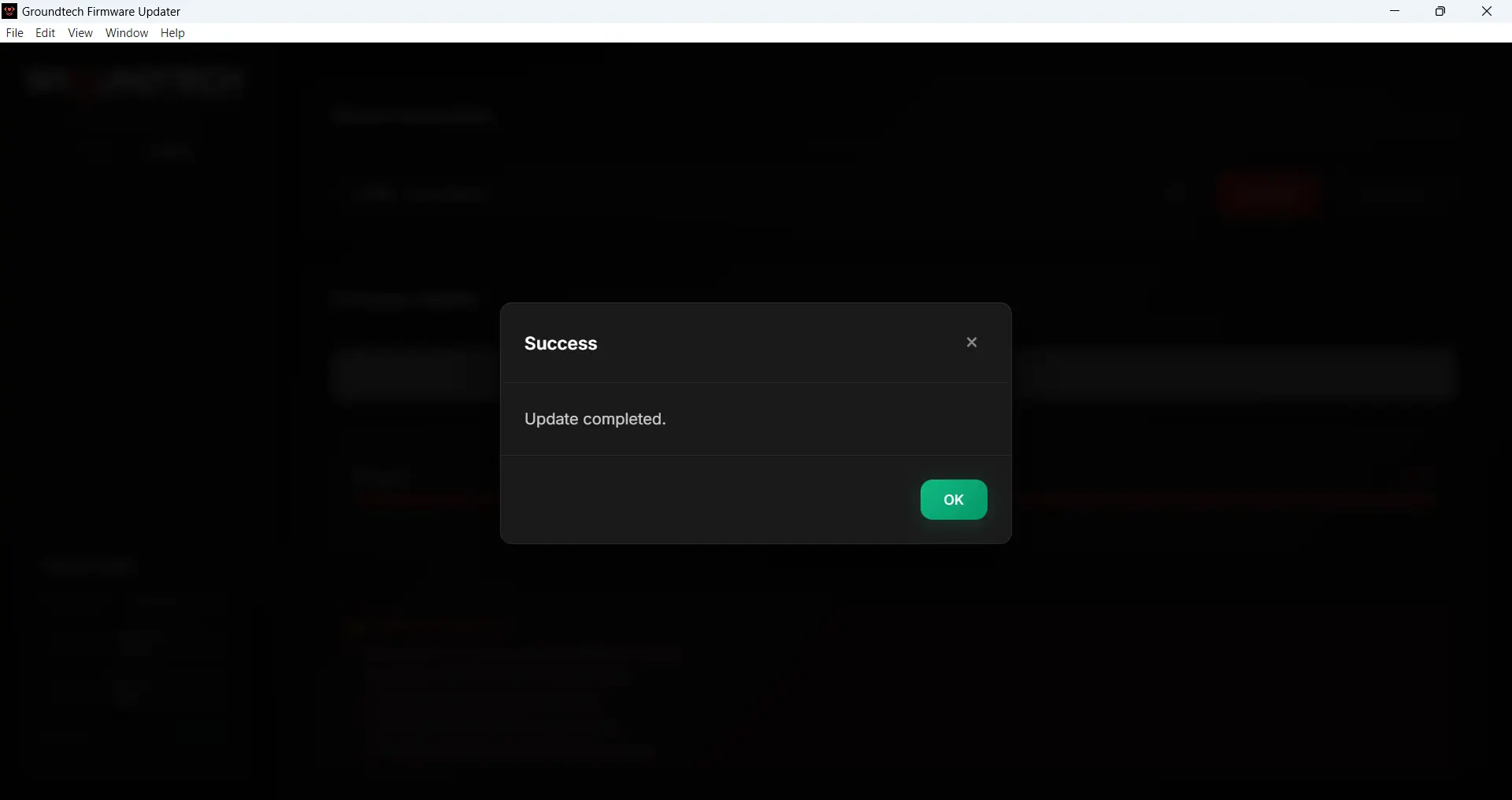
Update completed
When you see the Success message, the update is complete. Click OK to finish.